
| |
Google's translation service currently translates between 35 languages: Arabic, Bulgarian, Catalan, Chinese (Simplified and Traditional), Croatian, Czech, Danish, Dutch, English, Catalan, Finnish, French, German, Greek, Hebrew, Hindi, Indonesian, Italian, Japanese, Korean, Latvian, Lithuanian, Norwegian, Polish, Portuguese, Romanian, Russian, Serbian, Slovak, Slovenian, Spanish, Swedish, Ukrainian and Vietnamese.
Included is an editable Phrasebook to which a user can add commonly used phrases in order to save typing and which is searchable offline at any time. An offline history of the last 100 translations is also available from the main screen. All transfers to Google are compressed to save on roaming data charges which can be monitored along with network status on the application's "info" page.
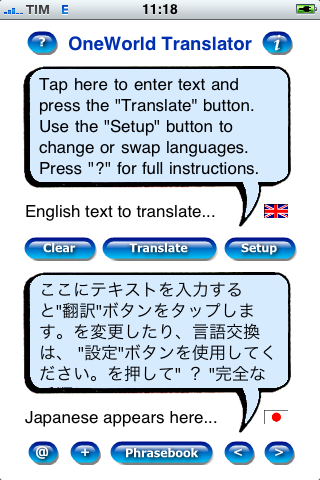 | This is the main screen of the
OneWorld application. All features are accessible using the buttons on this
screen. To translate a phrase tap on the upper part of the screen, enter your
text using the iPhone keyboard and press the "Translate" button. Press "Setup"
to change the languages to translate from and to. The "Clear" button clears
out any previous text. Looking at the bottom row of buttons "?" opens a description of the basic operation of the application while the "+" button enters the current translation into the user's offline Phrasebook which is accessed using the "Phrasebook" button. The two remaining keys "<" and ">" are used to access the history of the previous 1000 translations made by the application. The "i" button at the top right of the screen enters the information screen giving network status and transfer bytes counts which is described below. |
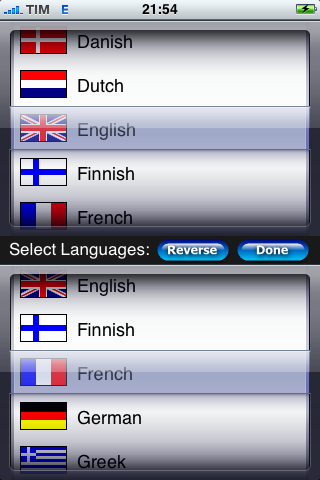 | This is the language selection
screen for OneWorld translations. The top picker selects the language to
translate from while the lower picker selects the language to translate
into. Use the "Reverse" button to swap these languages for reverse translation.
Click "Done" to use the language selection and re-translate. |
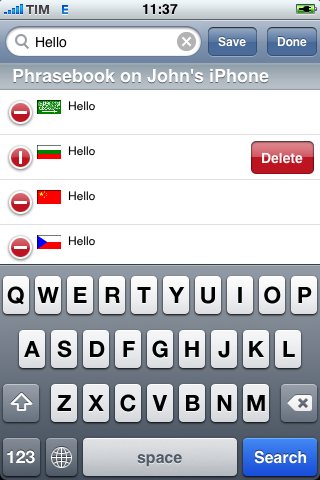 | This screenshot shows the Phrasebook in use.. Press the "+" button on main page to enter a phrase into the phrasebook and use the "Phrasebook" button to open it. Click on any item to view the text and it's translation on the main screen. The Phrasebook is editable in the usual iPhone manner as shown and can be searched interactively to find a given phrase. |
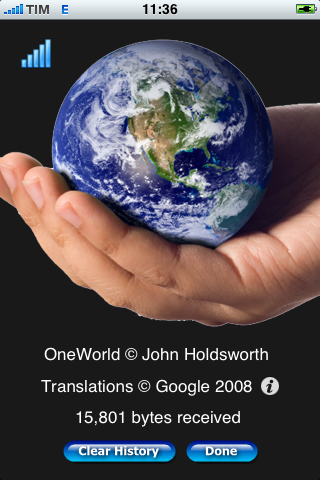 | Pressing the "i" button on the
top right of the screen shows the application's information or "About"
screen. The icon in th top left hand side shows the current network status
which will show either the mobile carrier icon shown or a Wifi icon if you
are connected to a local area network. No icon indicates the Internet is
not available at your location. The byte count at the bottom of the screen shows the total number of bytes received by the application since it was installed to keep track of roaming charges. Separate byte counts are maintained for Wifi and the Cellular Network. |
© John Holdsworth 2008